
Latest news · Tips
Getting your family tree out of Ancestry, Findmypast or MyHeritage
31 October 2026 · 3 minute read
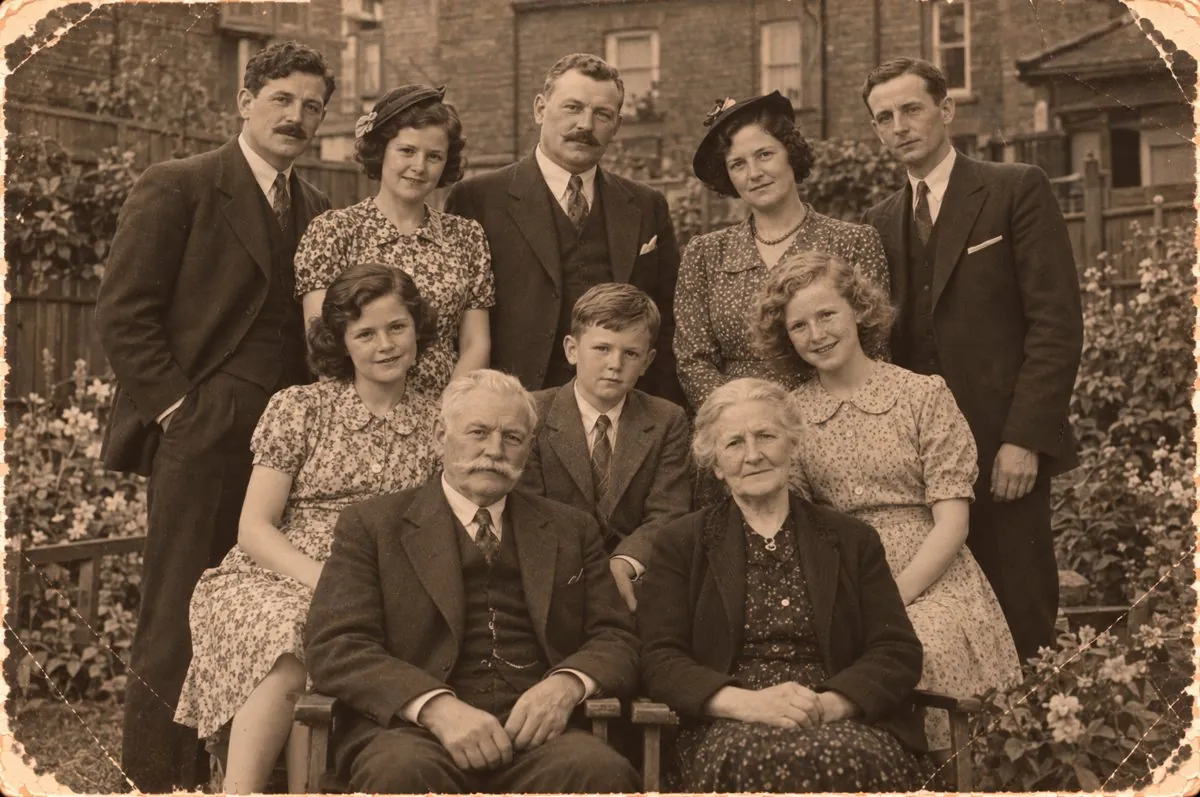
If you’ve built a family tree online, it lives on someone else’s computer. That’s convenient, but it’s worth having your own copy too, both as a backup and so you can use your tree with other software. The way to do that is a GEDCOM file.
What is a GEDCOM file?
GEDCOM (short for GEnealogical Data COMmunication) is a plain, standard file format for family trees. It has been around since the 1980s, and almost every family history program and website can read and write it.
✓ What it carries
- People: names, sex, and events such as births, marriages and deaths, with dates and places
- Relationships: who is married to whom, and whose children are whose
- Notes and source citations, depending on the site
✗ What it leaves behind
- Your photos and scanned documents themselves
- At most, links to where they’re stored online
- So download any pictures you care about separately
That’s one reason I don’t treat Ancestry or Findmypast as the master home for my photos and documents. The tree sites are excellent for building a tree and finding records, but pictures and scans are safer in a folder you own, on your own computer and in your own backups.
When I find an interesting document on a tree site, I download a copy straight away and file it locally, with a note of where it came from. Then no export, site change or lapsed subscription can take it away.
How to download one
The sites change their menus from time to time, so the wording may differ slightly, but the export option is always close to the tree’s settings or your list of trees.
- Open Trees and choose your tree.
- In the toolbar on the left, click More (three dots), then Tree Settings.
- Under Manage your tree, click Export tree, then Export.
- Click Download Your GEDCOM File. It arrives as a zip: double-click it to get the .ged file. (Only the tree’s owner can export it.)
- Choose Family tree from the top menu, then View all trees.
- Click the Export icon beside your tree.
- When the file is ready, click Download tree.
- Point at Family tree and choose Manage trees.
- Click Export to GEDCOM beside your tree.
- Decide whether to include links to your photos, then click Begin the export.
- Works differently: its Family Tree is one shared tree for everyone, so there’s no simple “export my whole tree” button. Third-party programs can copy your part of it.
The file ends in .ged. Save it somewhere you’ll find it again, with the date in the name, so you can tell exports apart:
Brandt family tree 2026-11-18.ged
Some sensible precautions
Your export contains names and dates of living relatives. Keep it private: don’t post it online or email it widely.
A GEDCOM is a snapshot. It doesn’t update itself when you add people online.
A few dated exports give you a history of your research, and a way back if something goes wrong online.
What you can do with it
With a GEDCOM file you can open your tree in desktop programs, share it with a cousin who uses a different site, or move to a new service without retyping everything. And you can connect your tree to your photographs.
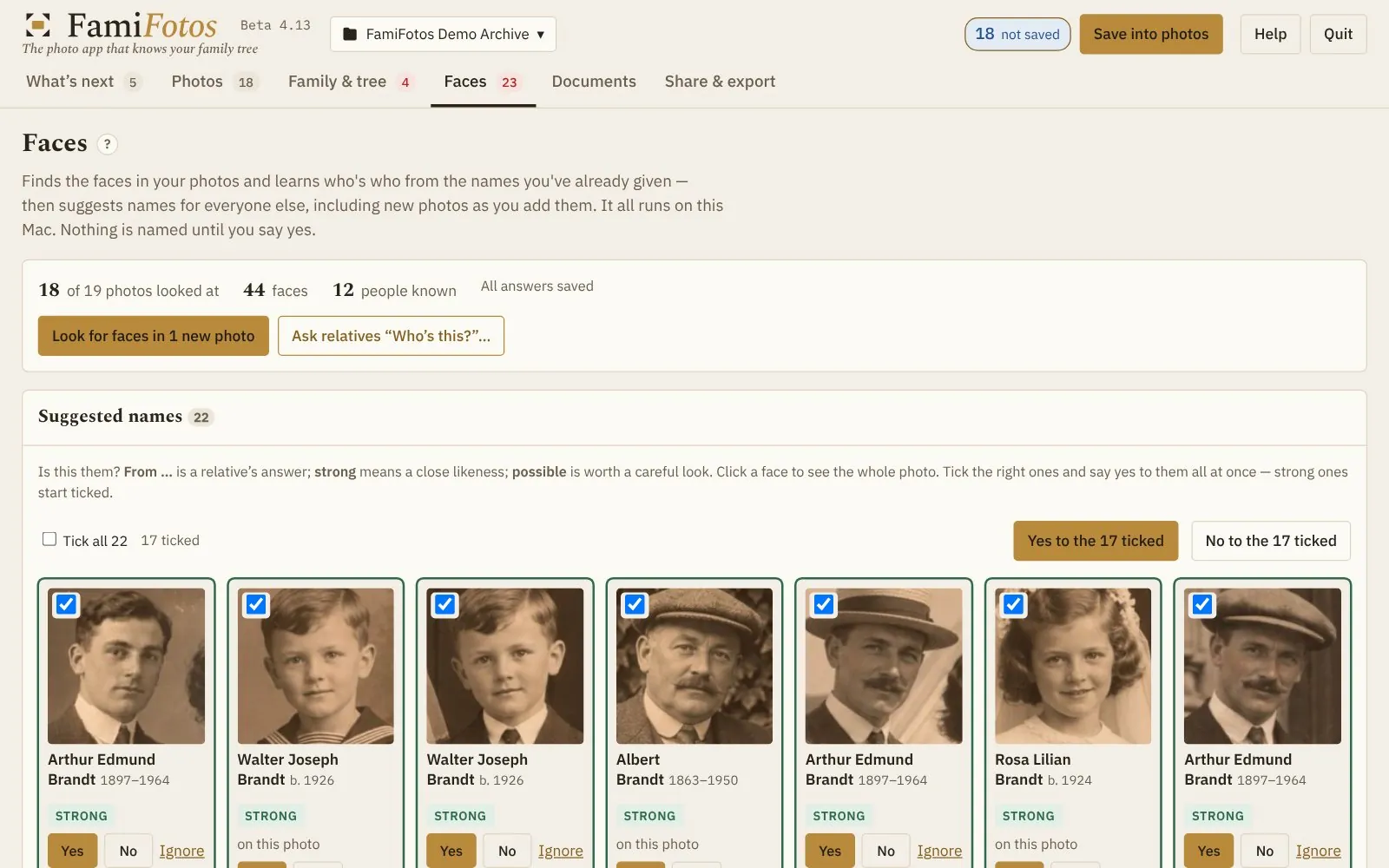
FamiFotos reads GEDCOM files from any of these sites. Once your tree is in, every photo knows its people: their life dates, how old they were on the day, who else in the family might be in the picture, and when a name can’t be right.