
Features
Everything FamiFotos does, in the order you’ll need it
From a box of unnamed prints to a family archive that will outlast every app, including this one. Why we built FamiFotos →
1
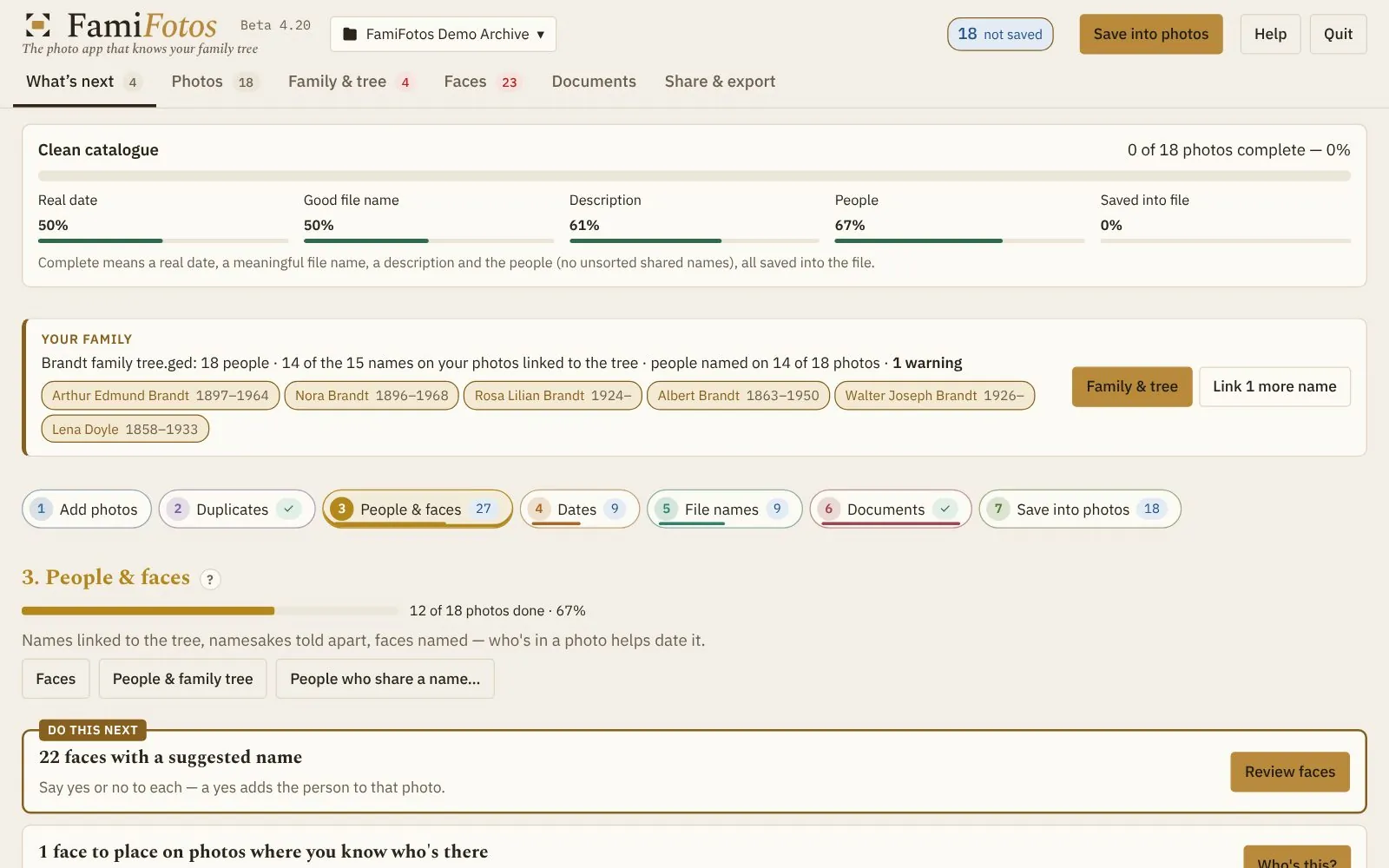
Gather everything in one place
Bring the scattered photos together, once.
- Bring photos in from anywhere: an album in Apple Photos, a Google Photos download, any folder, or a PDF (each page comes in as a picture).
- A watch folder for your scanner or phone: while FamiFotos is open, new scans come in by themselves.
- One tidy archive folder that you choose, on your Mac or in iCloud Drive. Keep more than one archive and switch between them.
- Duplicates found and merged. Rescans and resized copies are spotted; you keep the best one, and it keeps everything the others knew.
- Your originals are never changed. FamiFotos keeps the untouched original of any photo you edit.
2
Find out who’s in them
Name a face once, and FamiFotos looks for it everywhere else.
- Bring in your family tree as a GEDCOM file from Ancestry, Findmypast, MyHeritage or any other site, or build a simple one in FamiFotos.
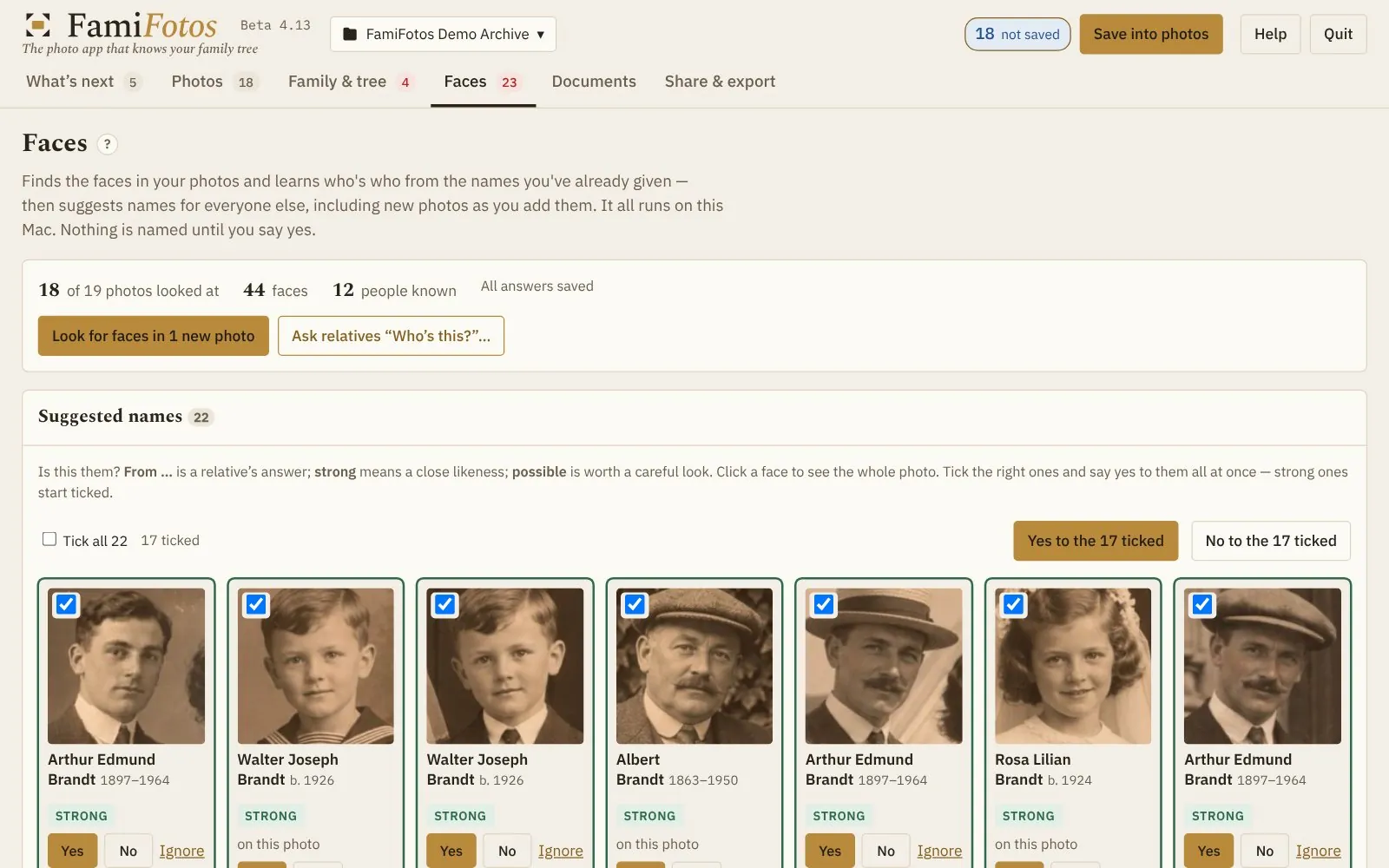
- Faces, named once. FamiFotos finds the faces, learns the people you name and suggests them in your other photos. Nothing is named until you say yes.
- Names you’ve already given in Apple Photos come in too.
- “Who’s this?” pages for relatives. Email the faces nobody can name; their answers come back as suggestions, credited to them.
- People who share a name are kept apart. Three George Marshes? Their life dates tell which one could be in each photo.
3
Find out when they were taken
Dates worked out from the people in the picture.
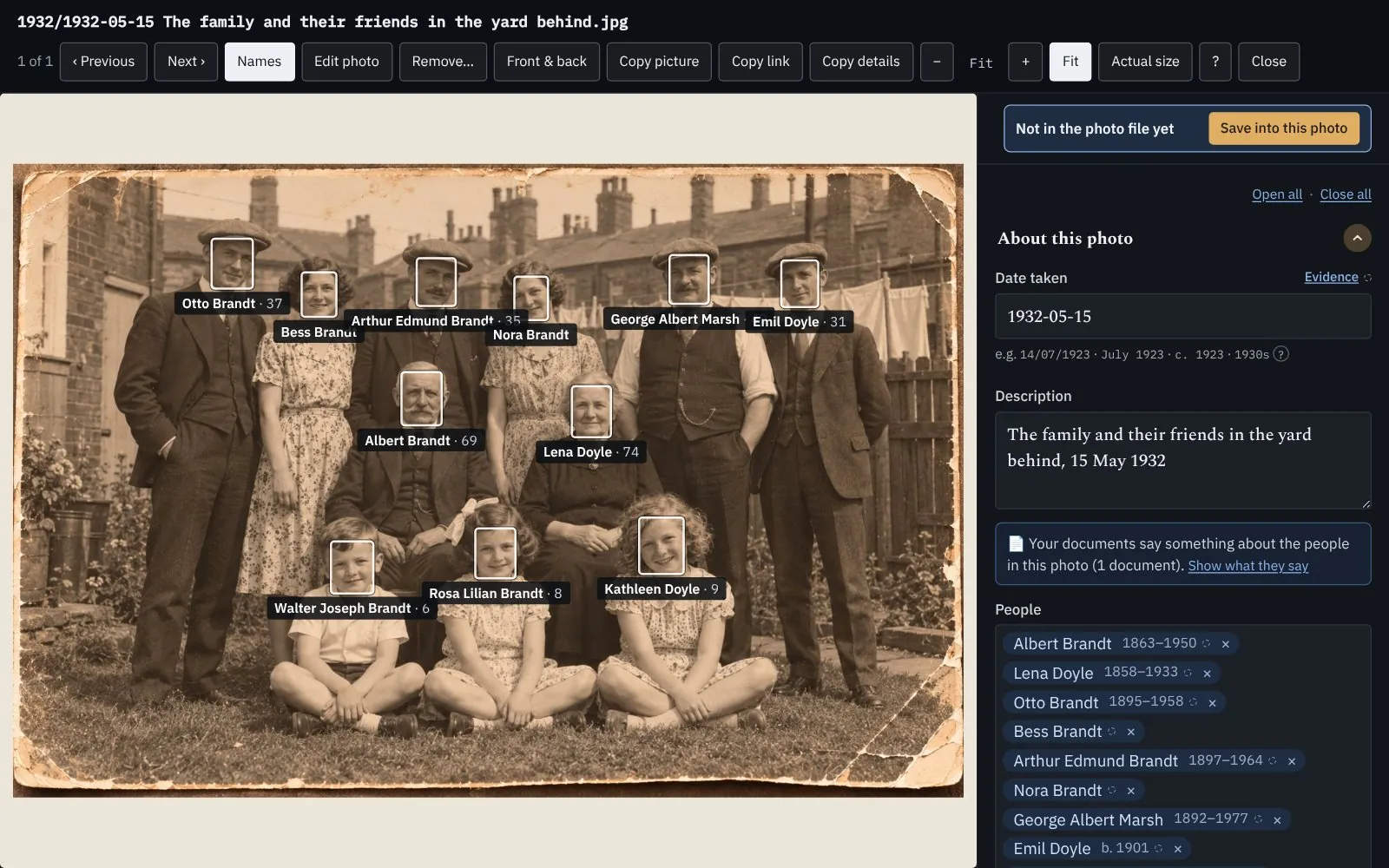
- Dated from the people in them. If Lena died in 1933 and Walter was born in 1926, their photo together falls between those years, and FamiFotos shows you how it got there.
- Ages on the day. Open a dated photo and everyone’s name shows their age when it was taken.
- Scan dates spotted, so a photo carrying the day it was scanned doesn’t mislead.
- Dates the way family historians write them: 14 July 1923, July 1923, c. 1923 or 1930s.
- Evidence for every date, so you, and anyone after you, can see why it’s believed.
4
Keep fronts, backs and documents together
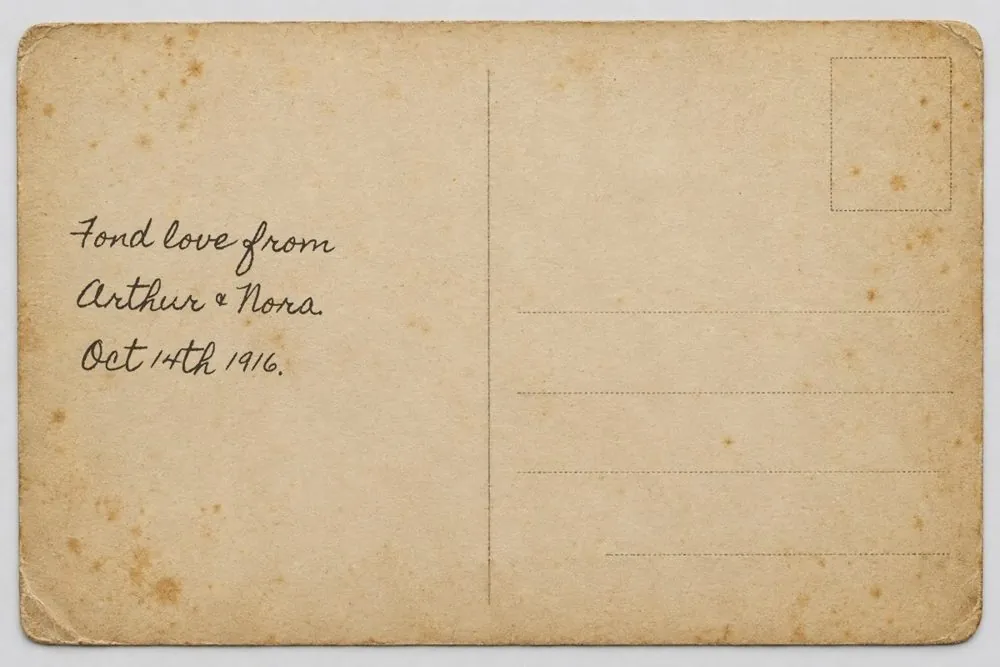
The back of a print is often the most valuable part.
- Fronts and backs paired automatically when the file names match (Scan 0042.jpg and Scan 0042_b.jpg), and kept side by side.
- Writing on the back read for you. Your Mac reads clear handwriting; for harder hands or other languages, FamiFotos prepares a request to paste into Claude or ChatGPT.
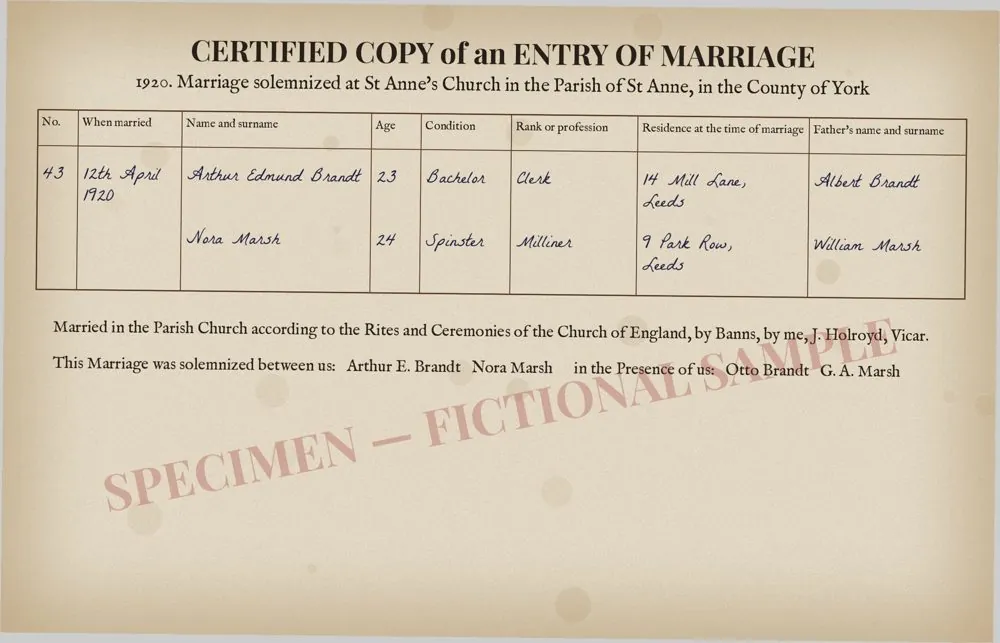
- Certificates, cards, letters and cuttings sit alongside the photos and are checked against your tree.
- A family history you’ve written in Word or PDF can be paired with your photos: FamiFotos matches its pictures to yours and suggests captions.
5
Tidy up without the tedium
One useful job at a time, across the whole archive.
- “What’s next” looks across the archive and offers the next useful job, one click at a time, through seven guided steps.
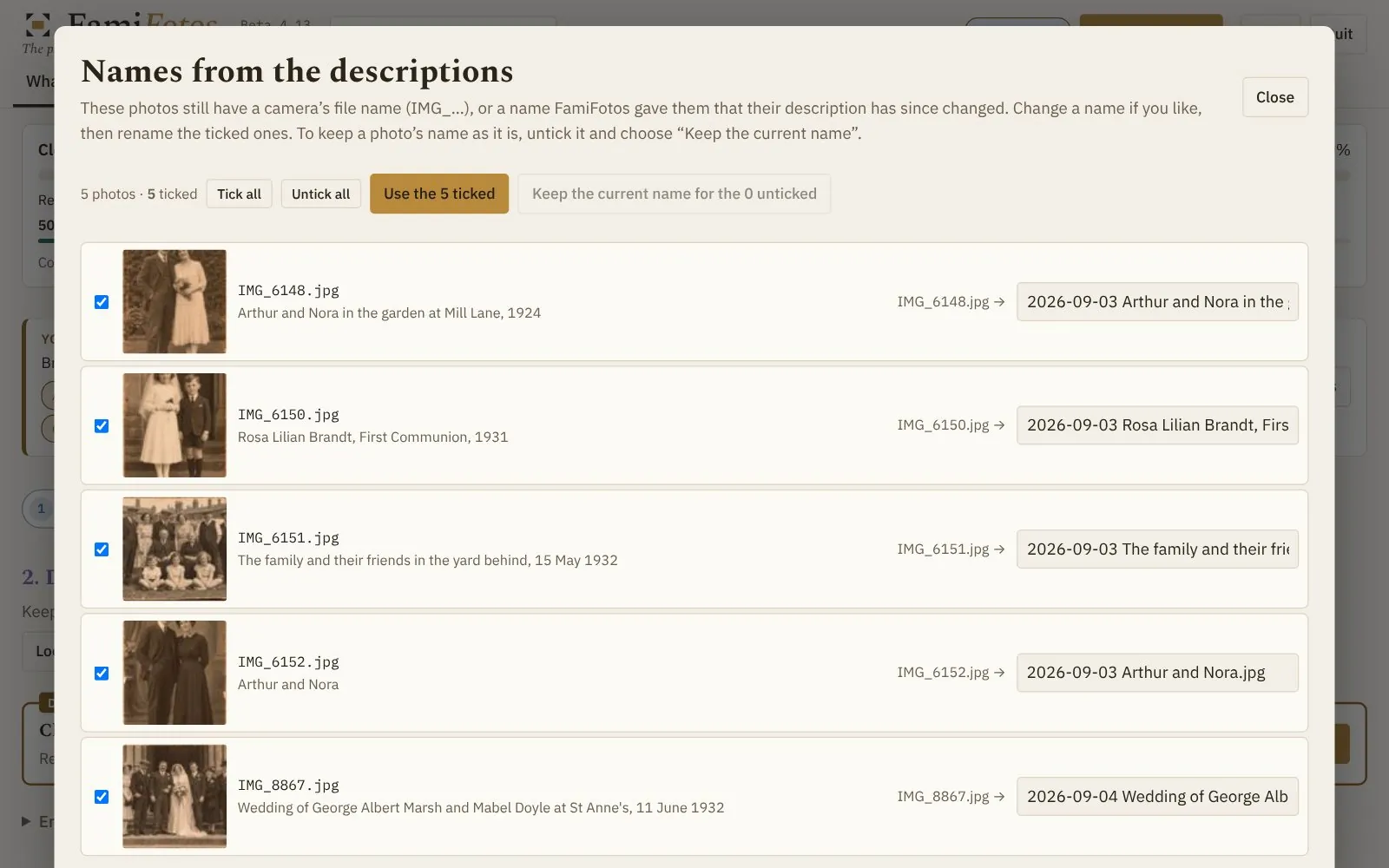
- Meaningful file names made from each photo’s date and description, with year folders to match.
- A spreadsheet of the whole catalogue for typing in bulk in Excel or Numbers, kept in step with FamiFotos both ways.
- Undo for any change that touched many photos at once.
6
Tell the stories
Turn a picture into a person, and a person into a life.
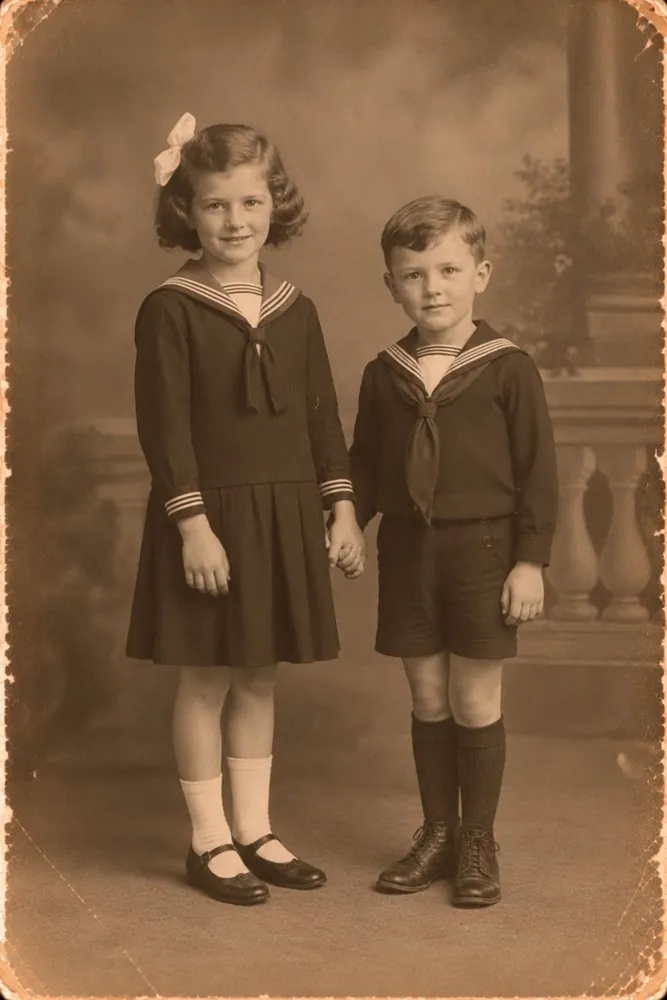
- The story behind a photo, kept with it.
- Life stories for anyone, drafted from your tree and their photos, for you to edit.
- Projects gather everything about one person or one branch.
- Research leads: questions worth following up, noted where you’ll find them again.
7
Make the details last
Everything you learn is saved into the picture itself.
- Saved into the photo files in the standard places other apps read: Apple Photos, Google Photos, Lightroom, and Windows on a relative’s PC.
- Life stories in Finder’s Get Info for the people in each photo.
- Details sent back to Apple Photos, into albums of their own, if that’s where you look at your pictures.
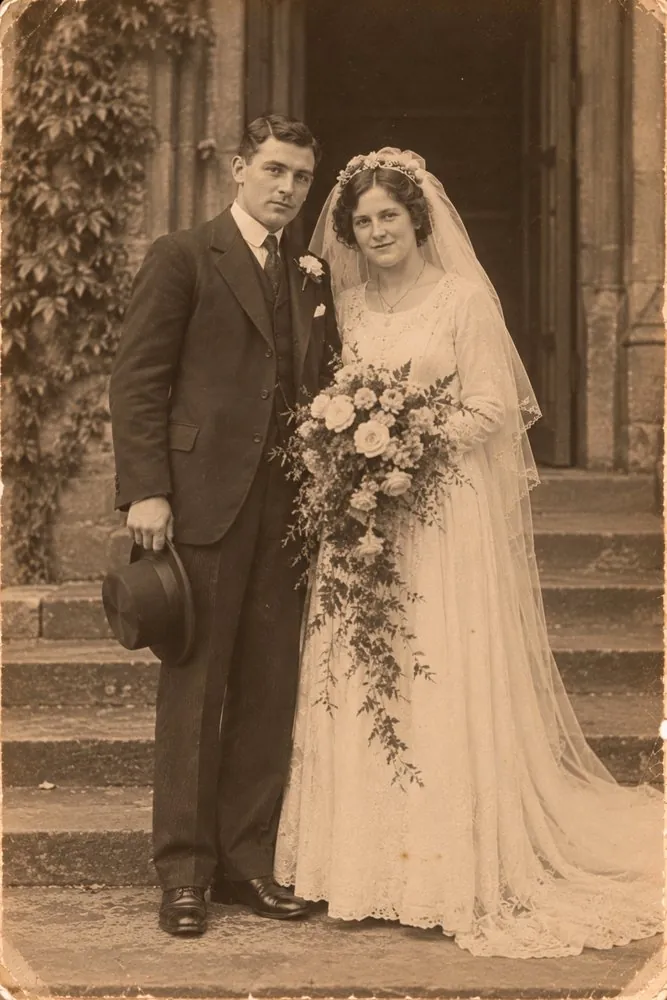
1920-04-12 Arthur and Nora’s wedding.jpg
Saved inside the file
- Date taken
- 12 April 1920
- People
- Arthur Edmund Brandt, 23 · Nora Brandt, 24
- Description
- Arthur and Nora on their wedding day at St Anne’s, Leeds
- Evidence
- Marriage certificate; family report
- Album
- Brandt family
Apple PhotosGoogle PhotosLightroomWindowsFinder
8
Share and pass it on
Let the whole family look, and help.
- A Family link for phones: a private web page relatives browse on any phone, with no app or account, kept up to date each time you save.
- A web edition to put online and share by link.
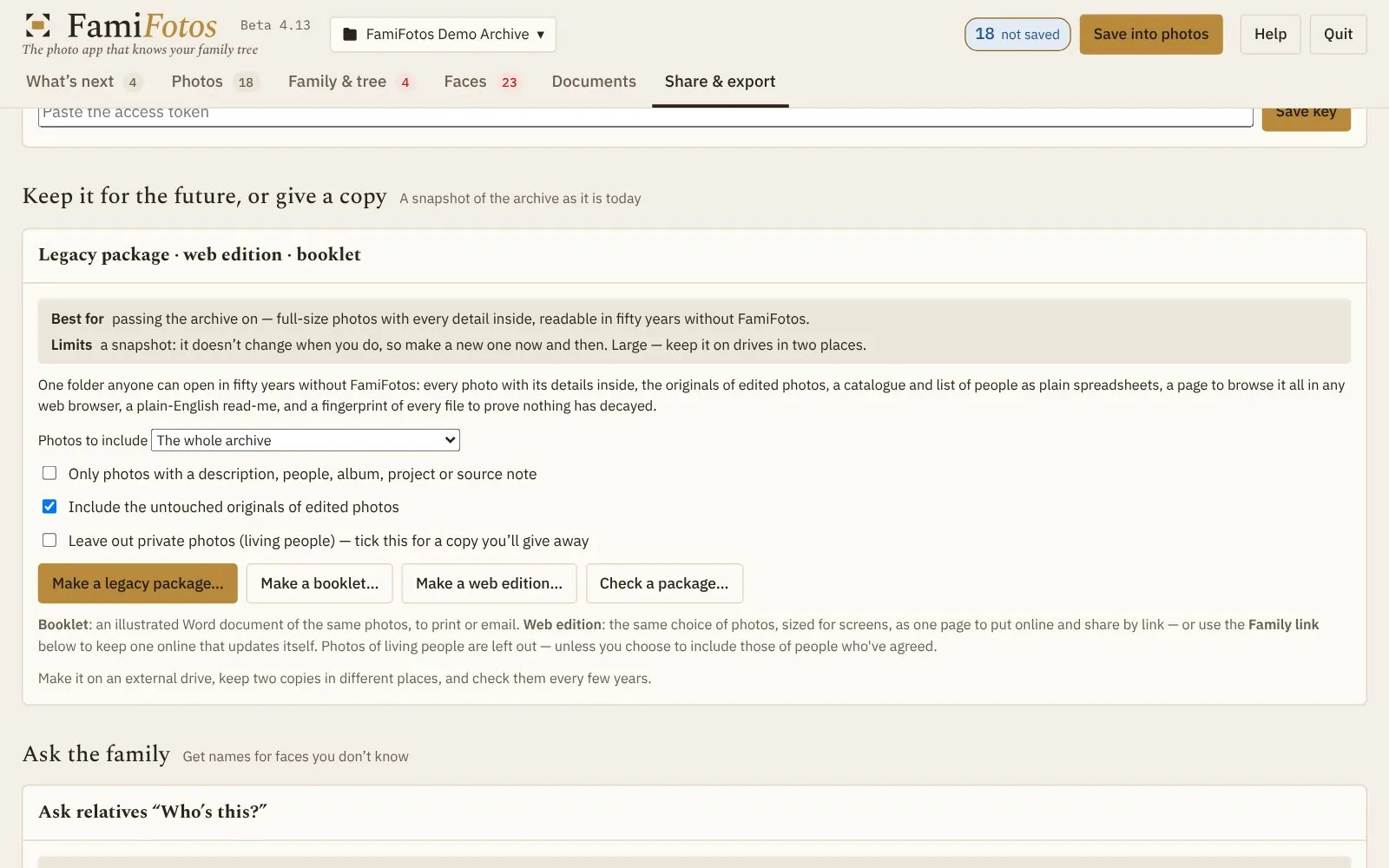
- A booklet: an illustrated Word document of your chosen photos, ready to print or email.
- A family tree poster: one line of descent on an A3, A2 or A1 sheet, with brothers and sisters at every generation and faces from your photos, ready to print and frame. There’s a free version anyone can use at famifotos.com/poster.
- Send to Google Photos, into albums named after yours, with the captions included.
- A legacy package: one folder anyone can open in fifty years, with every photo and its details, a catalogue, a page to browse it all and a fingerprint of every file.
- Living people kept private. Photos of living relatives are left out of anything you share, unless they’ve agreed.
9
Private and safe by design
Everything stays on your Mac
Nothing is uploaded unless you choose to share.
No account to make
And no cloud of ours to trust.
Nothing changes without asking
And anything removed goes to the Bin.
FamiFotos for Mac
£59.99, one payment, with a 7-day free trial and every feature included.